iOS Required Permissions
Here you will learn how to setup all the Group Link iOS SDK permissions and entitlements to your project.
Before you begin
Warning: It is strongly advised to request any necessary runtime permissions after the user launches your application for the first time. In scenarios where your application features a login page, failure to request these permissions may result in incomplete user registration.
Step 1 - Info.plist Permissions
Enable Location Services
Add the necessary keys to your Info.plist file. The description messages will be displayed when the app requests location service permissions. Ensure you provide meaningful descriptions for users about how and why location data will be used. To support beacon range detection, Group Link requires Always authorization for location services. Apple mandates the following keys for location services in your Info.plist:
- NSLocationWhenInUseUsageDescription
- NSLocationAlwaysAndWhenInUseUsageDescription
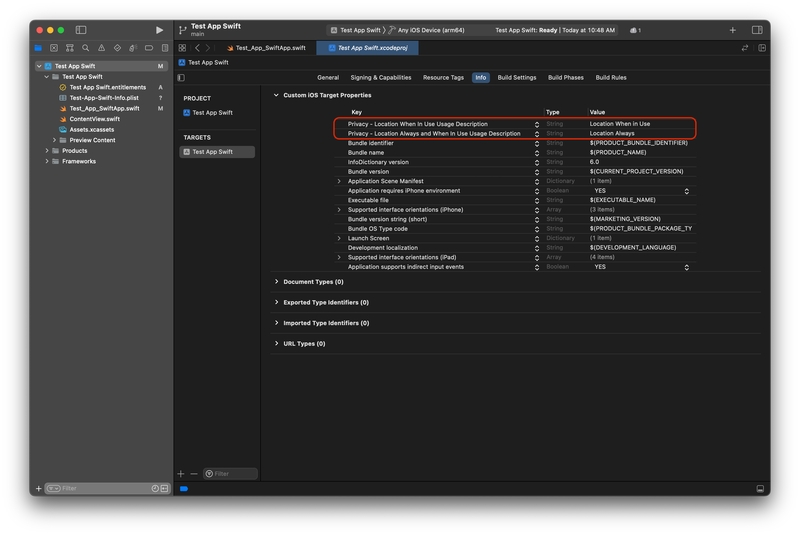
Location strings inside the info.plist file
Enable Bluetooth Services
Since iOS 13, Apps are required to add the Bluetooth permission into the Info.plist, file in the description you need to describe why you will use the Bluetooth, our description is listed below.
- NSBluetoothAlwaysUsageDescription
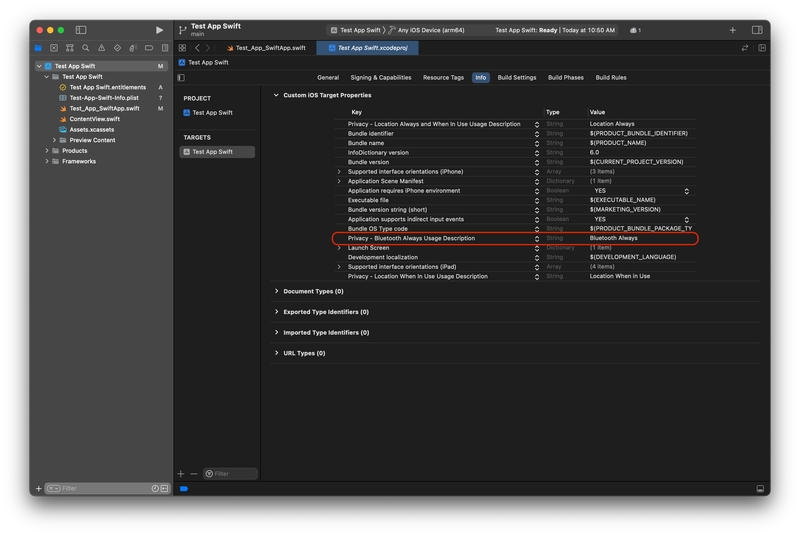
Bluetooth string inside the info.plist file
Apps with support from iOS 12 below
If your app supports earlier iOS versions (iOS 12 or below), you must also include the older Bluetooth usage key:
- NSBluetoothPeripheralUsageDescription
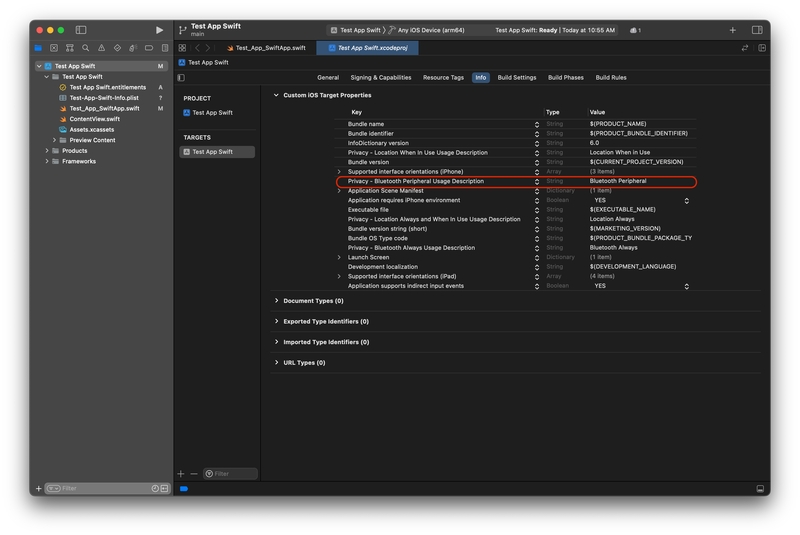
iOS 12 below bluetooth string inside info.plist file
Enable background task functionality
To allow background tasks for our framework, insert the BGTaskSchedulerPermittedIdentifiers key in your Info.plist file. This key should contain an array of strings. Then, add our identifier: com.grouplinknetwork.bgtask.
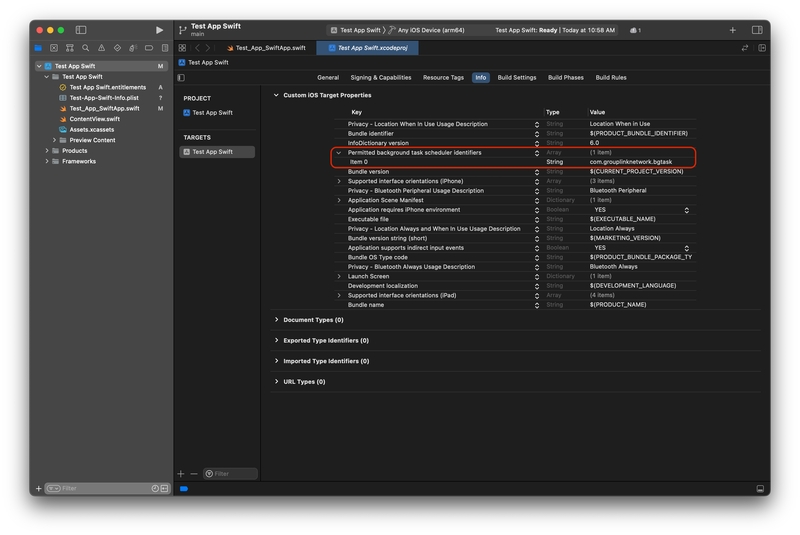
Group Link Background Identifier inside the info.plist file
Step 2 - Entitlement Permissions
Enable Access to WiFi Information
On the Signing & Capabilities tab of your target settings, click on the “+ Capability” button, and add the capability Access WiFi Information.
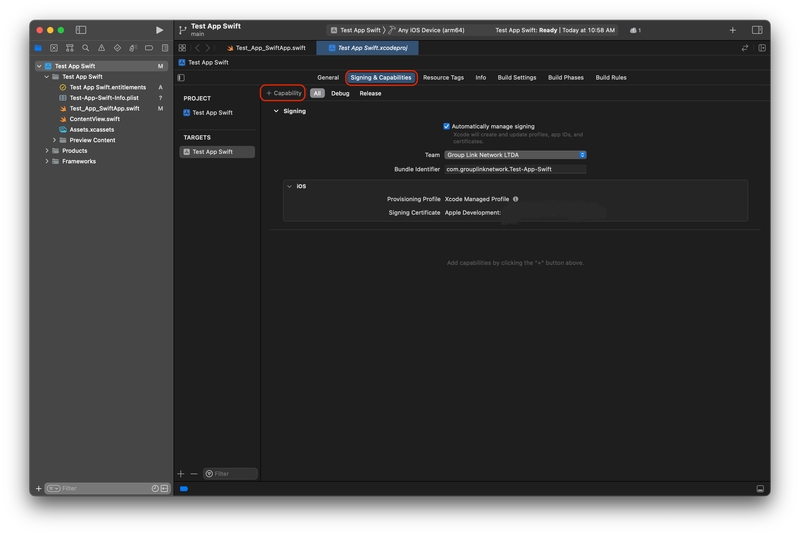
Signing & Capabilities page
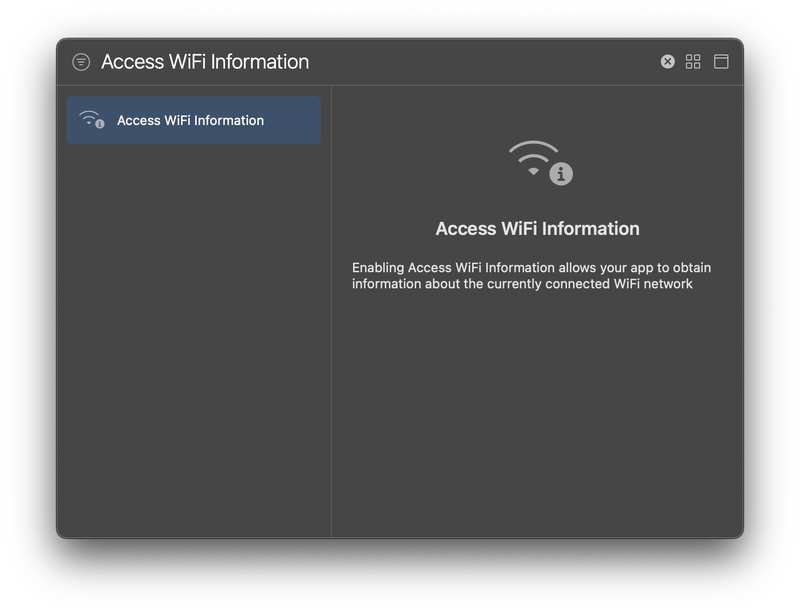
Access WiFi Information Entitlement
Enable Required background modes
Your app must be able to run in all background modes for the Group Link technology to work. You can do this by adding Background Modes inside Signing & Capabilities.
The Group Link framework needs Location Updates, Uses Bluetooth LE accessories, Acts as a Bluetooth LE accessory, Background fetch, and Background processing to work properly.
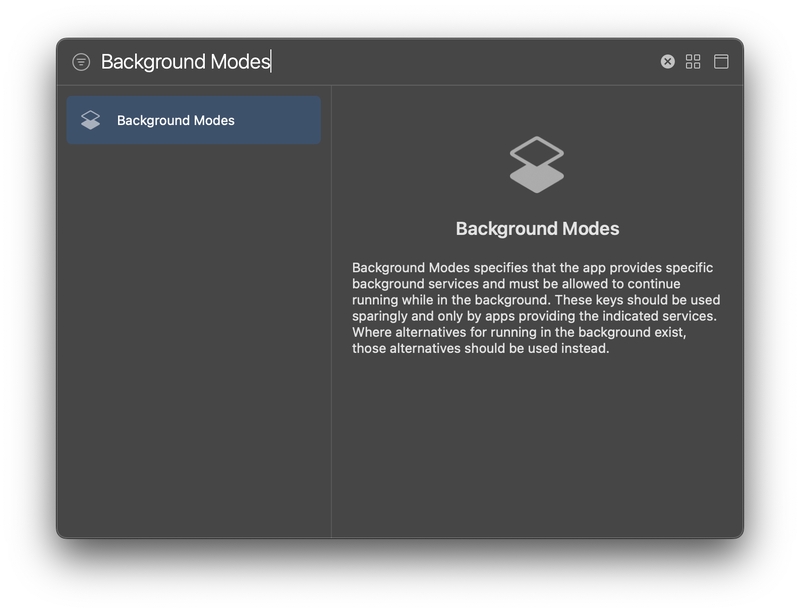
Background Modes Entitlement
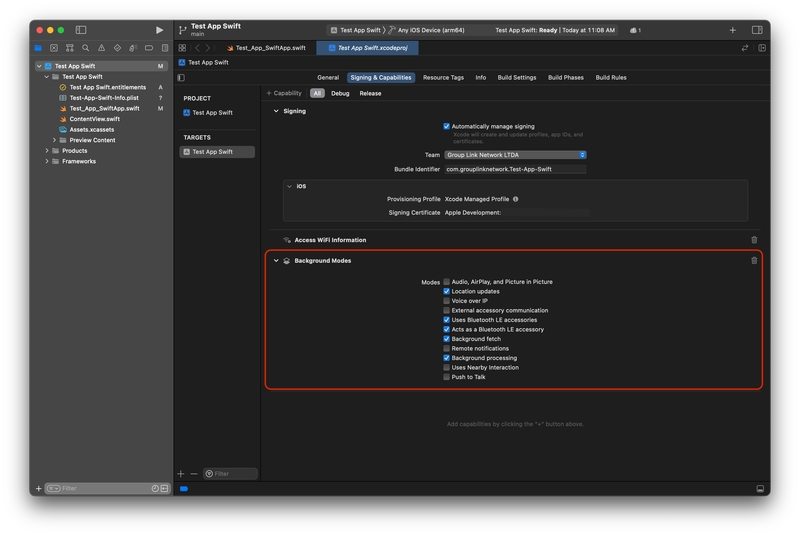
Background Modes options selected
Next Steps
You may now proceed to the iOS Initialization page to continue the setup process.